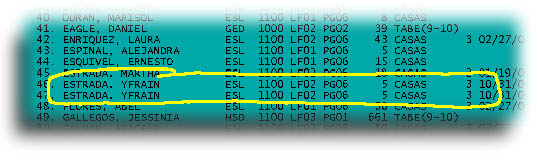
MAERS: Review your MAERS Batch Export ReportSave yourself a little annoyance and review your MAERS Batch Export File before you send it to us. If you are like many of your fellow batchers, you may have unexpected duplicates. It's not painful, and it is easily cured. Menu:7.5.2. Create Export Files is the next-to-last step in preparing your batch, right? Well, maybe not. At the end of running this option you will be asked if you want to view this <Month>XPORT.TXT file (where <Month> is the three letter abbreviation for any month or EOY). Answer Yes and print it out. Now, go looking for duplicates. Here is a common duplicate...
Here is a student who was enrolled in the HSD program in the fall, dropped out, then came back and enrolled in the GED program in the winter. Sound familiar. In this case, it is ok because they are two different programs. Unfortunately the student dropped both programs. Nothing you can do about this one. Here is another example. Here is the same student entered in the same program twice. Too bad, the big MAERS computer will reject the second record. No big deal you say, right. It is not a big deal, except that the MAERS folks make a big deal out of it anyway. Worse, you will have to pay to have the record batched before it can be rejected. We are the only ones who win on this. Moore gas for Mr. Motorcycle!
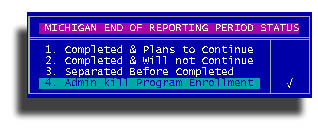
To correct this non-malady, go into the student screen, press ME for the MAERS Enrollment panel, select the second (duplicate) program enrollment record. When prompted to Edit, eXit or Print, press the X and you will get the exit or End of Reporting Period Status panel. Choose item 4. Admin kill Program Enrollment.
When you escape from this dialog you will be asked if you are sure. Of course you are, answer Yes. Now the student will only have one program enrollment record. Press E to edit it and make sure the separation eoy status is correct and with the correct date. Do this with all of your duplicated program enrollments from the export report and then go back to Menu:7.5.2. and perform 1. Create Working Files and 3. Create Export Files again (in this order). Now when you review your export report you should not have any program duplications. When you are satisfied that it is a good as it's going to get, make a regular backup (Menu:7.7.) and send it to us. Go to www.sturec.com and click on the Upload button. Here is a reminder on how to do that. Questions or comments, send them to drrobert@sturec.com [WebMaster's note: for best results, print in 'Landscape' orientation.] |