Live, Interactive Training (by Appointment only)


MSDS: What's new?

What is new in STUREC© Version 0.94 you ask. Well, in addition to the changeover from SRSD to MSDS and all that that entails you will have some new tools to help simplify your work.

The first thing you may notice is that the first time after you install an update, you will be asked if you want to view the SRNOTES. Answer Yes and STUREC© will attach to the Internet, go to www.sturec.com and read the latest notes and display them inside the main screen. Of course you can always press <Alt-P>, find SRNOTES.TXT and read them that way too.

How about letting STUREC© check for and then download a new update for you? You are used to using <Alt-V> to bring up the EnVironment or Version information.

Answer the question Yes and STUREC© will connect to the Internet, go to our website and check to see if there is a newer update available.


Or it could go this way...


Fine, the current update has been downloaded and is located in the correct folder in your system. You still must close STUREC©  and everyone else too, then open MyComputer and navigate to where STUREC© is located. Find the file sr04new.exe to launch the installer. If you don't see the installer right away, try closing MyComputer and any other open windows on the screen. Sometimes the installer gets pushed to the back. Answer Yes every time it asks permission to overwrite an existing file. We want the latest version, don't we?

Another new thingie will be found after you perform your daily backup procedure.

If you answer Yes, your backup file will be uploaded to the Sturec website for safekeeping. There is no charge for this service.

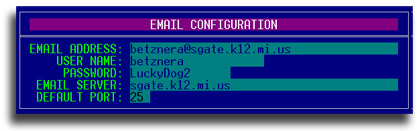
That brings up Email. You may now send email directly from within STUREC© This could be handy, for instance after you create any export file in the MSDS service menu you will be offered to Email the export file directly to whomever needs it. Cool, eh? But you must setup your Email account first. Find this at Menu:7.3.1.5. Email Configuration


It is pretty easy to setup. Your regular email address that you use every day.
Your 'User Name' that you use to access your email account and the 'Password' used.
You will need to know the name of your district's 'Email Server' It is often the same as your domain name -- but not always.
If you are unsure, please ask someone in your IT department for the Email Server Name and if they require a special 'Port',
normally the default port is 25, but your district system may require a different number. This only needs to be filled in once.
Be aware that all users will share this one outgoing email account for STUREC© purposes.

Please setup your Email Configuration before you attempt to upload a backup to us. If you don't have your email client setup properly, we will not get notified that you upload a backup for safekeeping. Once properly configured, you may access the STUREC© Email client by simply pressing <Alt-E> to bring up this simple dialog.

When you finish addressing and writing the message you will be asked if you want to Send it now. Answer Yes and away it goes...

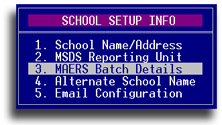
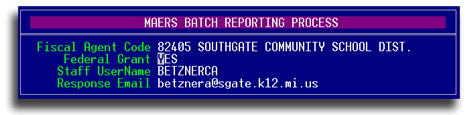
If you have a Federal grant, even if you are not a MAERS Batch participant, go into item 3. MAERS Batch Details

 
This is where you tell STUREC© that you have a Federal Grant so you will be allowed to properly mark such participants.

As long as you are there it makes sense to make sure the other items are properly answered.

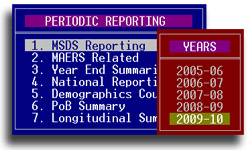
Lets take another look at the new MSDS Reporting services menu. It is reached through our old buddy Periodic Reports

When you first enter you will always be asked to verify the correct school year.

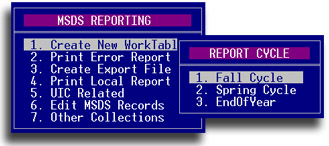
And when you first enter the MSDS menu you will be asked to verify the correct reporting cycle. From this menu you may Create a New Worktable, Print an Error Report and Create an Export file. You may also want to print a Local Report of students included in the Export file. This is also where you deal with UIC and Other Collections.

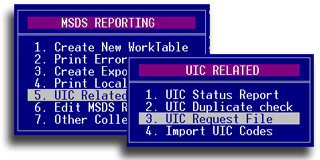
A really important function this year is to get UIC for every student. The General Collection files will not be accepted if there are any student records included without UIC.

When the file has been generated you will see a message similar to this.

All of your export files from the MSDS sub-sytem will be named as above. The letter "X" followed by your ISD code and your LEA number then the reporting cycle and a brief meaningful name with the extension of ".xml" denoting that the file is in the new XML format. The export files are always placed in the Export folder which is inside of the Sturec folder.

You will then be asked two questions:

Would you like to copy this to a disk?
Would you like to Email this file to someone?

These two questions will follow the creation of any export file.

When you receive the response file with the new UIC, place it in the Import folder inside of the Sturec folder and you can easily import them via the 4. option Import UIC Codes.

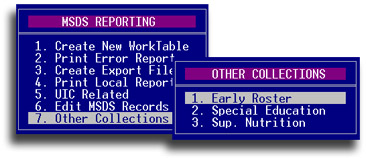
We should mention Other Collections

Right now there are three other collections identified. The Early Roster is working, the other two are still being developed.

We will be having more as the year progresses. You are always welcome to send me a note, question or comment. 

E-Mail:

[WebMaster's note: for best results, print in 'Landscape' orientation.]


Information in this document is subject to change without notice.
All products mentioned are registered trademarks or trademarks of their respective companies.

Questions or problems regarding this web site should be directed to info@sturec.com.
Copyright © 2009 MicroData Systems, Ltd.. All rights reserved.