
This new version of STUREC© will only run on Windows XP, it will not run on Windows 98 and we have not tested on Windows Vista. Don't remove your Sr03 stuff. The two can run side-by-side and if you liked something in the old version or if something goes wrong for you in the new version, just run the old one. No harm, no foul. The new version uses the same database as the old version.
Installing the new Windows version is basically the same as installing the
current DOS version, only the name has been changed to Sr04.
It is really the same 2-step procedure as used to install
software from any other website:
Before you even begin this first step, make sure you know where your STUREC© is located in your computer system! To find out, start STUREC© in the normal manner. With the Main Menu on the screen, press Alt-V to pop-up the enVironment information panel. It should look something like this.
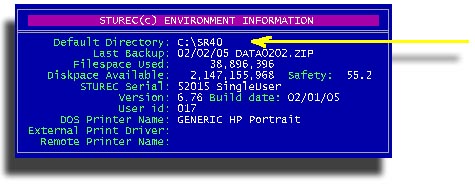
Make a note of the Default Directory then press <space> to close the pop-up. Close STUREC©.
Now fire up your browser and point it to http://www.sturec.com Click on the Download button (right below the left end of the bridge).

and you should see this . . .
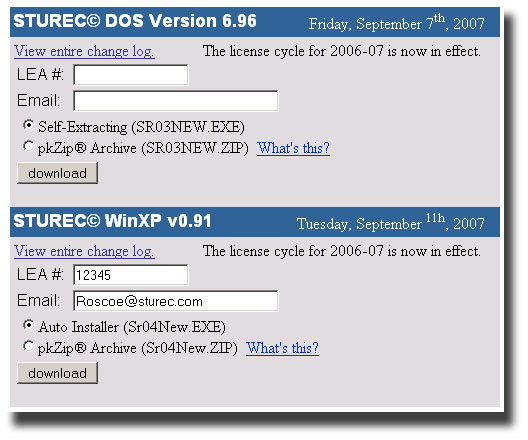
First, please note that the DOS Version 6.96 will continue to be available for the rest of the year. We will not provide any new updates. All changes, updates and additions will only be made to the new Windows version Sr04. Make sure that you fill out the correct dialog for the program you want. Both Sr03 for DOS and Sr04 for Windows can run on the same computer or network system interchangeably.
Click the Download button and you should see something similar to one of these...
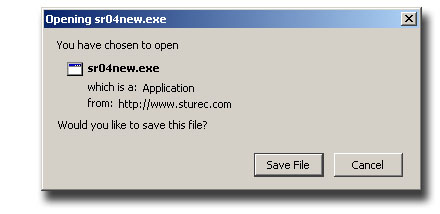
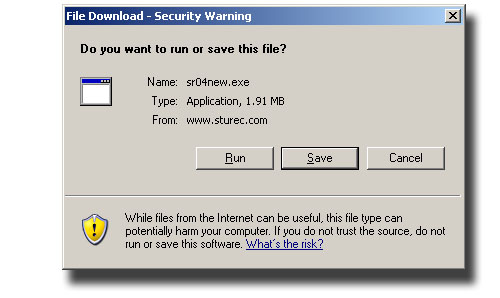
You should click the Save File button then you will see a Save As dialog box. Navigate this to the drive and folder containing your installation of STUREC©
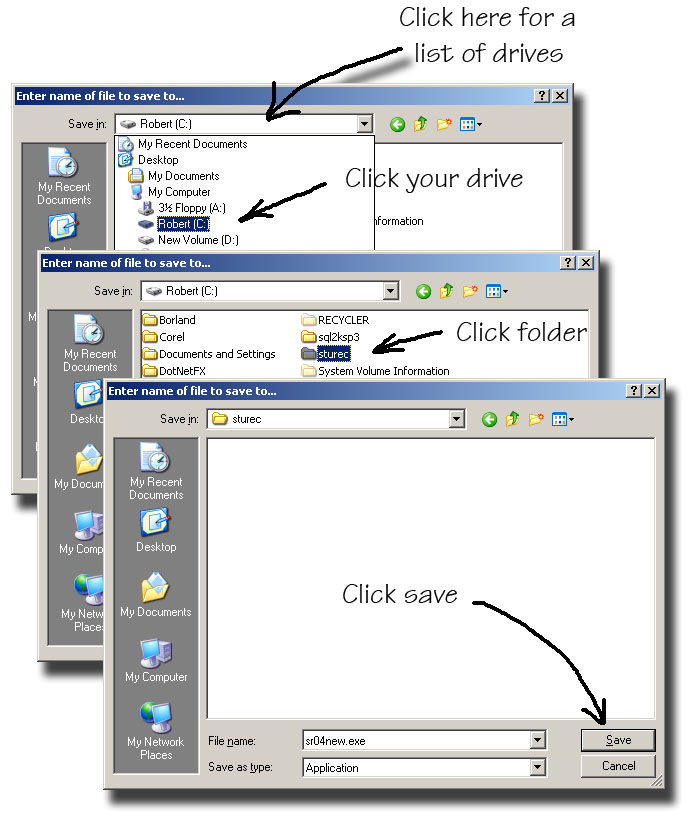
There, the new Sr04 installer has been downloaded, now we have a couple more steps. It has to be installed and then we will create an icon to run it. To install, click on your MyComputer icon...
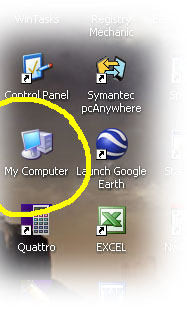
...which should launch...
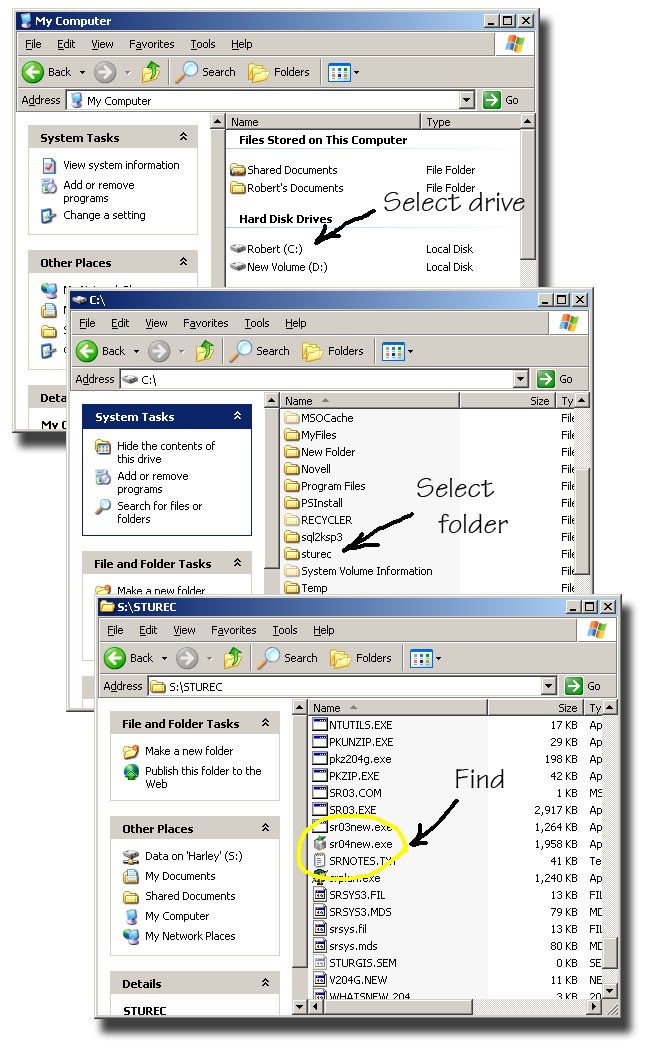
Now Double-Click on the sr04new.exe file and it will install the new Windows version of STUREC©
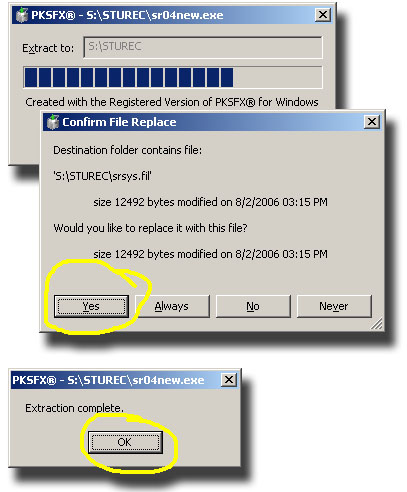
Click the Ok button and the installation is complete! Now we'll make a new icon and the job is done.
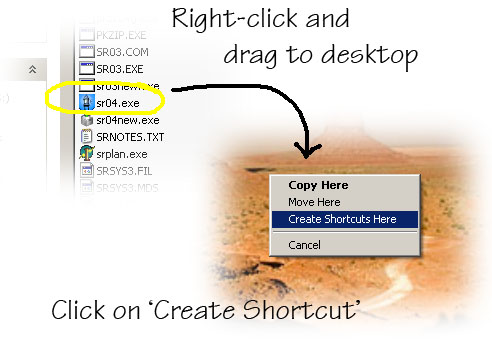
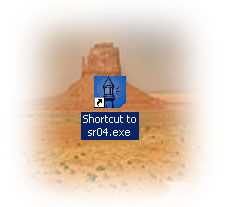
And there is your new icon complete with the little lighthouse. You may want to change some of the settings, for instance change the Font to 10x18 and on the Layout tab make sure that both the Screen buffer size and Window size are 80 width and 25 height.
Double click your new icon and here is what you will see.
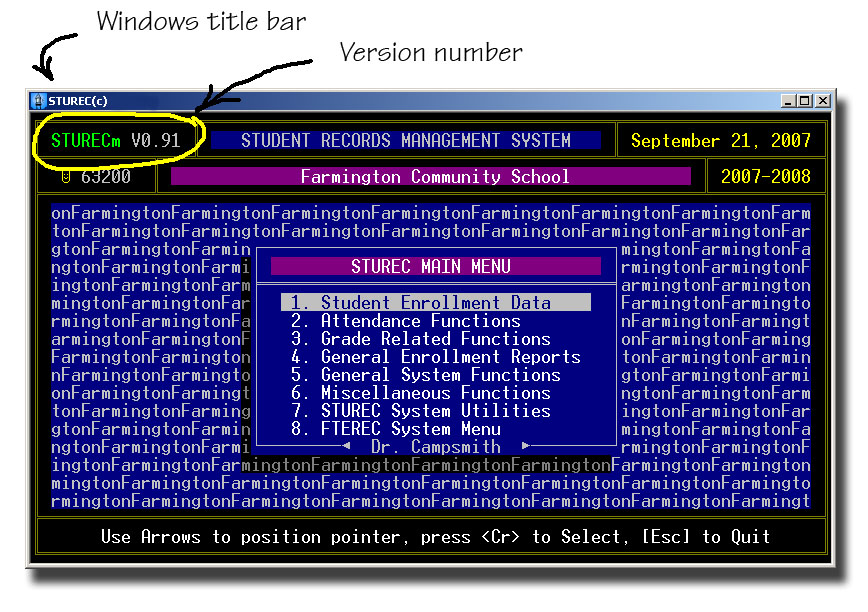
From now on, you only need to perform the first two steps, Download and Install. You will not need to create a new icon each time you download an update.
Thanks,
-- Dr. Bob